
Apple CarPlay and Android Auto for BMW
BMW CarPlay Service in Dubai
Want CarPlay on a BMW that does not have it, or CarPlay that keeps dropping out? We check which iDrive your car has, then either switch on the factory CarPlay, fit an interface that keeps your original screen, or find out why your existing connection fails.
Compatibility before commitment
Get a fitted BMW CarPlay quotation
Send your model, year and photos of the screen and controller. We assess whether supported factory integration, an aftermarket interface or a replacement screen suits your car. The fitted price is confirmed after checking the installed equipment; no single activation price applies to every BMW.
Factory integration
Confirm hardware, software, equipment options and market eligibility. Ask whether the proposed work uses an available BMW entitlement or a third-party method, and what later software updates may affect.
Interface or screen
Confirm the exact product, screen resolution, microphone and audio connection, retained controls, fitting labour and setup. Compare complete installed quotations, not a box-only price.
Existing connection fault
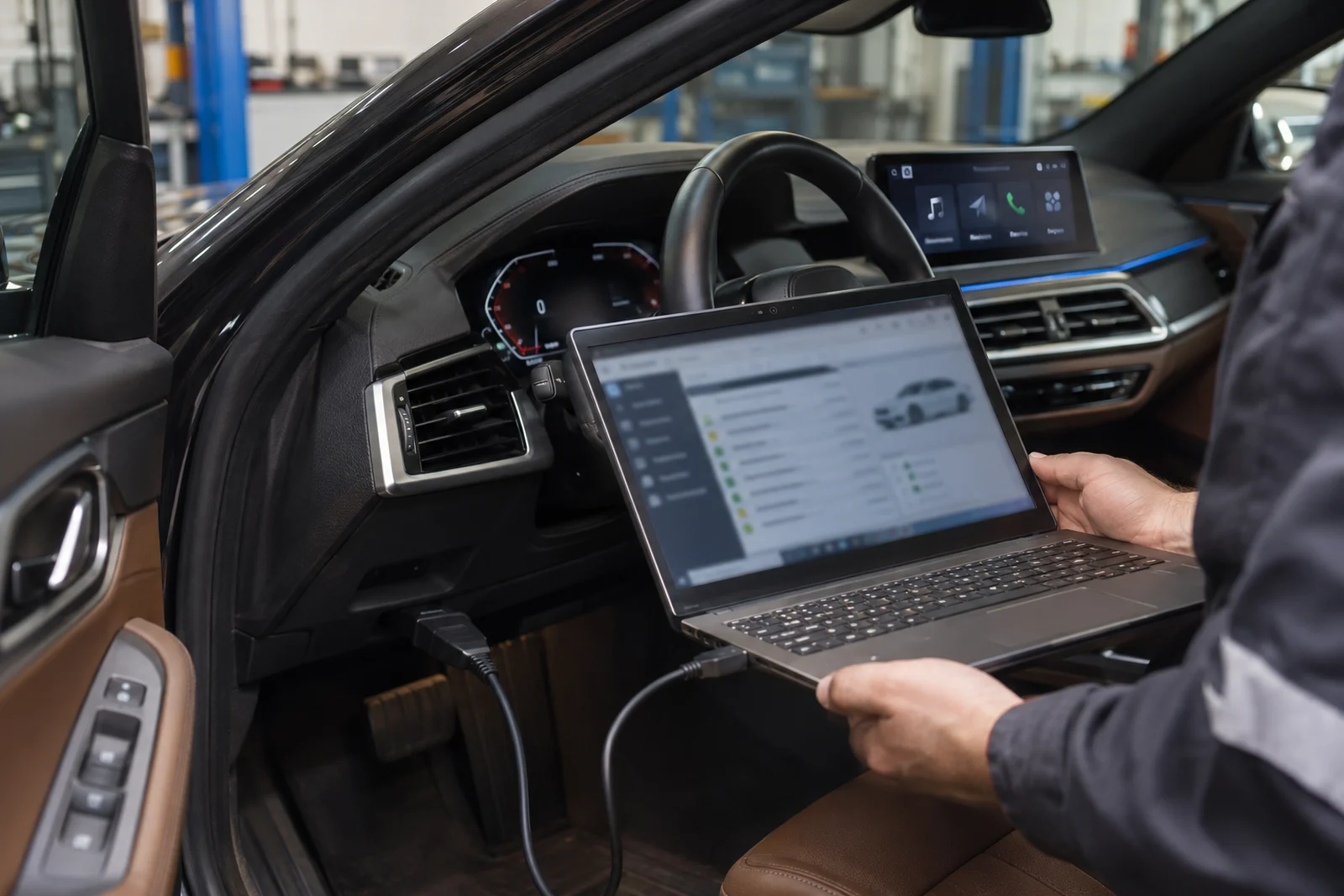
Agree the diagnostic charge before testing. Phone, pairing, cable, firmware and vehicle checks may be needed before an interface or head unit is blamed.
Your written quote should specify hardware, licensing or activation charges where applicable, labour, VAT treatment, exclusions and warranty terms. Confirm whether initial assessment is chargeable and whether that charge is credited against approved work.
Start here
Which BMW iDrive Can Run CarPlay?
BMW has used several generations of iDrive head unit. Head-unit hardware, software, installed options and market eligibility determine the available route. Photos help with an initial assessment; menu appearance alone does not prove compatibility.
Years are approximate and vary by model. CCC, CIC, NBT, NBT Evo and MGU describe different head-unit families; iDrive menu labels are not interchangeable with hardware identification. Check VIN/build data and the installed unit, especially on imported cars or previously modified systems. Newer operating systems also need a vehicle-specific check.
Your options
Three Ways to Get CarPlay in Your BMW
There is no single CarPlay kit for every BMW. These are the three routes, and the right one depends on the head unit your car already has. Each route has different appearance, control and compatibility implications. Agree the retained functions and any limitations before choosing.
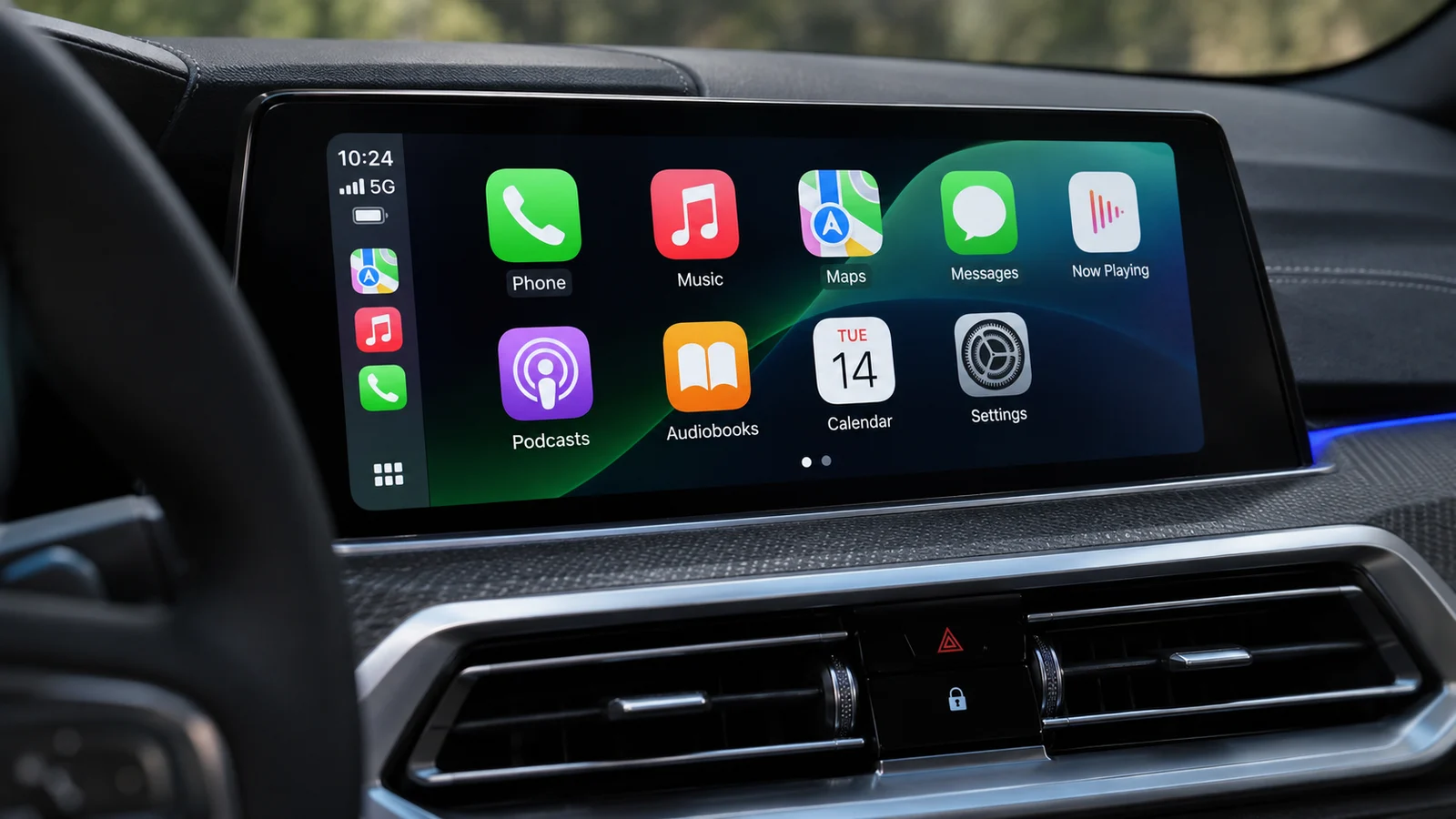
Eligible systems may support native CarPlay. Verify hardware, available BMW entitlement, software and market support first; do not assume every iDrive 5, 6 or 7 unit can be enabled.
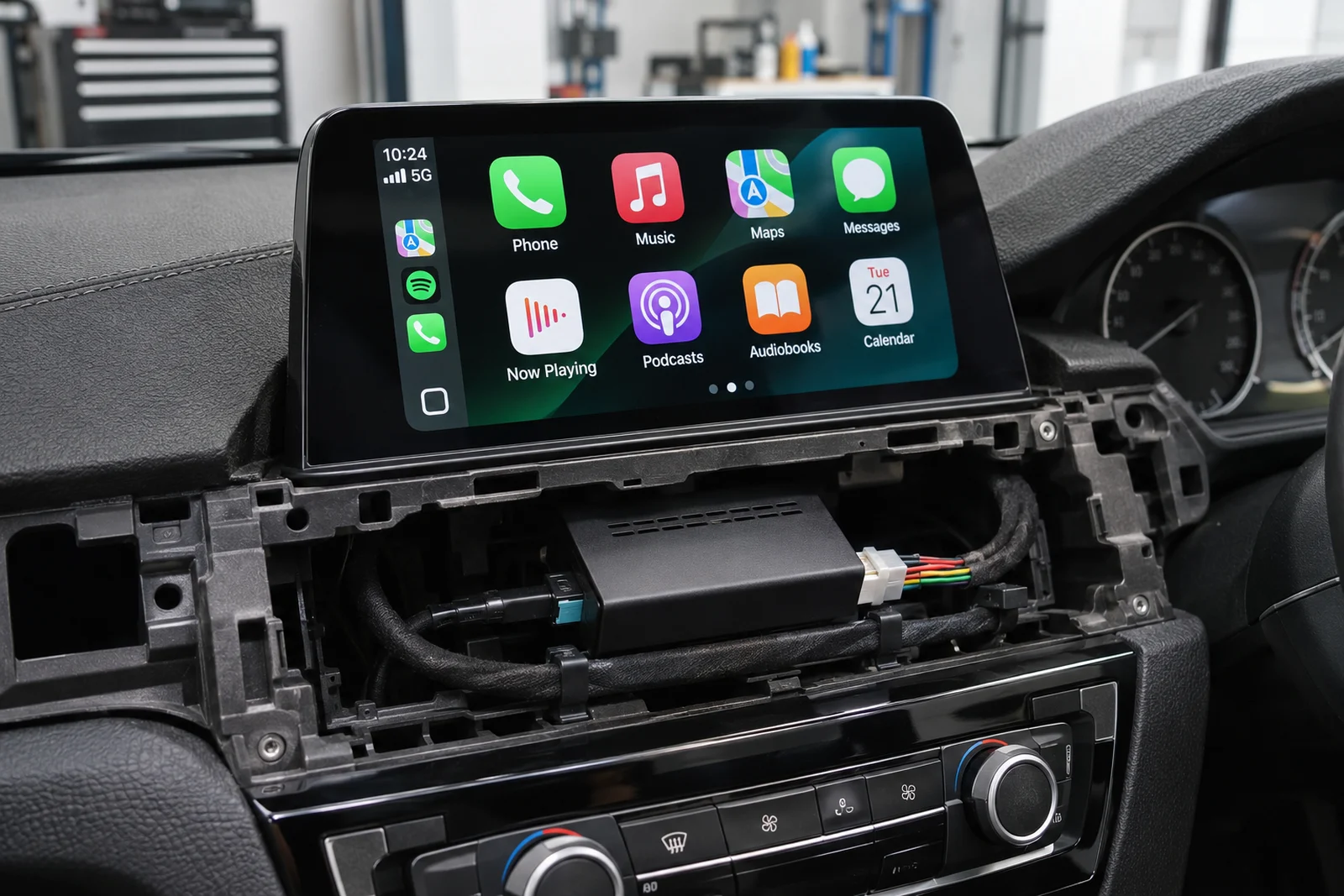
On CIC and NBT cars, a small interface is fitted behind the screen. You keep the original screen and iDrive, and switch between BMW menus and CarPlay.
On older CCC cars, a replacement screen with CarPlay and Android Auto can be the simpler choice. It changes the look of the dash.
Factory CarPlay
CarPlay Activation on BMW iDrive 5, 6 and 7
Some suitably equipped BMWs support native Apple CarPlay. Check the vehicle’s ConnectedDrive availability and fitted options before arranging activation. Original-screen control depends on the equipment fitted; a screen without touch hardware does not become a touchscreen through activation.
A supported software-only route may avoid an interface installation. Confirm whether hardware changes are needed, the activation method, and what future updates or warranty arrangements may affect. Ask whether any third-party method is BMW-approved and request evidence for that claim.
Older screens
CarPlay Interface Boxes for Older BMW Screens
For cars with CIC or NBT iDrive, an interface box sits between the head unit and the screen. It adds CarPlay and often Android Auto, with retained functions checked for the exact interface and car.
The quality of these boxes varies a lot. The proposed unit must match the head unit, screen and audio system. Some use the original microphone; others require a separate microphone. Audio may use AUX, USB or another supported path, depending on the product. A poor one can flicker, lag or lose the reversing camera, which is why we choose the unit for your car rather than fitting one box for every model.
Driving an older CCC car? See our BMW CCC repair page for repair and upgrade options.
- Original screen and iDrive knob
- Steering wheel buttons
- Reversing camera and sensors
- BMW menus and settings
- Apple CarPlay
- Android Auto on most units
- Phone navigation with live traffic
- Music and podcast apps
Before you buy a box
Choosing a CarPlay Interface That Lasts
Many owners buy an interface online, then find it does not suit their car or fails after a summer in the dash. These are the points we check before recommending a unit, and they are worth checking if you are comparing options yourself.
Already have CarPlay?
BMW CarPlay Not Working, Common Faults
Factory CarPlay can stop working for reasons that have nothing to do with the phone. These are common faults, and what usually sits behind each one. Fault codes are one part of diagnosis. Reproduce the issue and compare phone, connection, software and installed-interface behaviour before deciding the repair.
If your CarPlay was added with an aftermarket box and has started to misbehave, bring the car in as it is. Many faults are loose connectors or settings rather than a failed unit.
Check eligibility, pairing, settings and recent updates. Third-party activation may be affected by an update; a battery change alone does not prove an entitlement was lost.
Software and activation checkedBluetooth pairs but CarPlay never starts, often a phone setting or a fault in the car WiFi link.
Pairing and WiFi testedThe connection cuts every few minutes, from interference, phone settings or the car module.
Signal and module checkedApps run but the audio or microphone does not work through the car.
Audio routing checkedThe head unit locks up when CarPlay starts, sometimes a software fault in the iDrive.
Head unit software checkedFlicker, lag or a lost reversing camera after an aftermarket box was fitted.
Wiring and settings checkedTry these first
Quick Fixes to Try Before You Book
A lot of CarPlay problems are settings on the phone or the car. These take a few minutes and are worth trying before you book, and they cost nothing.
If it still fails, arrange a compatibility and connection assessment. These checks do not prove a car fault. Where practical, test another compatible phone to help separate phone-specific and vehicle-side problems.
- Check CarPlay is allowedWhile safely parked, enable Siri and ensure CarPlay is allowed under Screen Time restrictions.
- Forget and reconnectRemove the car from the phone and the phone from the car, then pair again.
- Update the phoneAn out of date iPhone can stop connecting to the car.
- Turn WiFi and Bluetooth onEnable Wi-Fi and Bluetooth and check Auto-Join for the CarPlay network. For supported wired systems, test a suitable direct cable and supported USB port.
- Restart the iDriveRestart your phone and follow the vehicle manual for restarting iDrive. Check appropriate stereo/interface firmware with the installer before updating.
For Android phones
Android Auto on BMW
BMW added Android Auto later than CarPlay. Support depends on the fitted equipment, software, compatible phone and market. Some suitably equipped Operating System 7 vehicles received support through a software update. Older cars cannot get factory Android Auto, but most CarPlay interface boxes and replacement screens support it too.
If you share the car with someone who uses a different phone, an interface that supports both is often the most practical choice, since each driver can connect their own phone.
Connection type
Wired or Wireless CarPlay in a BMW?
Wireless CarPlay starts by itself when you get in, which is why many owners prefer it. A cable connection charges the phone at the same time and is less affected by interference. Which you can have depends on the system in your car, and some interface boxes let you use both.
Our process
How We Add CarPlay to Your BMW
The work starts with reading the car, not with a parts order, so you get the route that suits your exact iDrive. Where an interface is fitted, the trim around the screen is removed with plastic tools and refitted with its clips.
Confirm retained functions
What Stays the Same After CarPlay Is Added
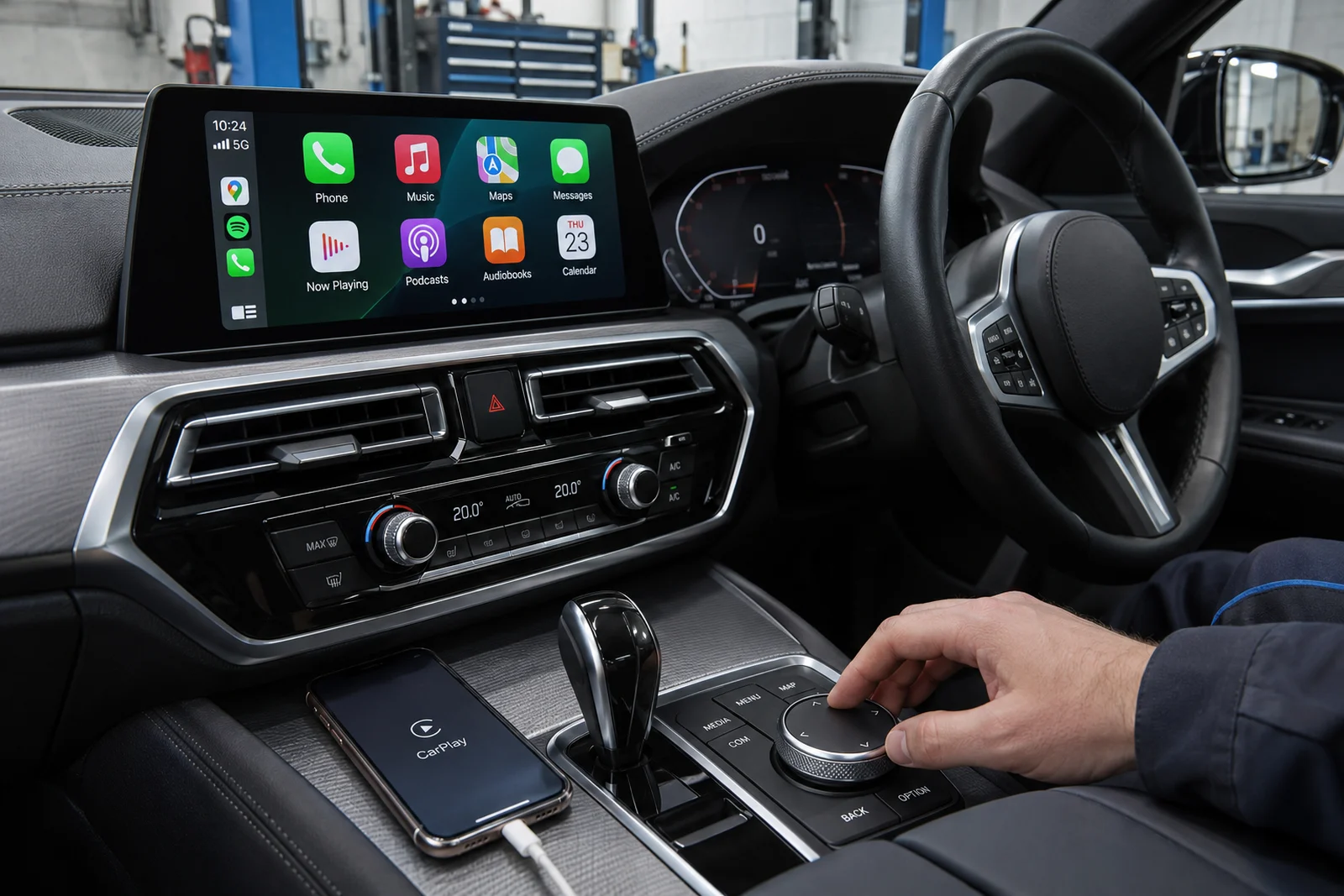
Adding CarPlay should add to the car, not take anything away. Agree which functions the proposed kit retains. Verify them during handover rather than assuming every interface preserves every feature. Original navigation and radio access, switching behaviour and voice-button operation depend on the installed system.
By model
CarPlay Options for Popular BMW Models
These are typical routes for popular models on Dubai roads, from older E chassis cars to the latest G chassis. Your exact car may differ depending on its build date and options, so we always confirm from the chassis number before quoting.
Not sure which iDrive your car has? Send us a photo of the screen and the iDrive knob, or the chassis number, and we can give an initial assessment before confirming compatibility and the fitted quote.
Related work
More BMW iDrive and Screen Services
FAQ
BMW CarPlay Questions Answered
Short answers to what owners ask before booking CarPlay work. If your question is not here, send it on WhatsApp with a photo of your iDrive screen and we will reply with an answer for your car.
Can CarPlay be added to my BMW?
Many BMWs have a suitable factory or aftermarket route, but compatibility must be checked. Send model/year and screen/controller photos; we then confirm the installed head unit, equipment and supported options before quoting.
Is BMW CarPlay wireless?
Factory CarPlay on most BMWs is wireless. Many interface boxes offer wireless CarPlay too, and some also work with a cable.
Does activation give me genuine BMW CarPlay?
A BMW-supported entitlement on eligible hardware is different from an aftermarket activation method. Confirm which method is offered, any hardware requirements, and the implications of future software updates before approval.
Will I lose my reversing camera?
The proposed system should be checked for your camera and parking-sensor display. Confirm passthrough compatibility before purchase, then test reverse selection and return to BMW menus at handover. Do not assume every kit supports every camera configuration.
Can I get Android Auto as well?
Possibly. Factory support depends on equipment, operating system, software, phone and market. Aftermarket interfaces and screens vary; confirm both phone platforms and connection types on the exact product quoted.
Why did CarPlay disappear after a service?
Check settings, pairing, software history and the original activation method. An update may affect a third-party setup, but disappearance alone does not establish that activation was removed. Diagnose before paying to reactivate it.
Can the work be reversed?
An interface installed with suitable reversible connections may be removable, but original wiring, trim changes and software alterations affect restoration. Agree what is modified, whether original parts are retained and any restoration costs before fitting.
How much does BMW CarPlay cost in Dubai?
The fitted price depends on native eligibility or the interface/screen selected, installation, audio and microphone requirements and any setup work. Request a written total including VAT treatment and warranty. Confirm diagnostic or assessment charges separately.
Does CarPlay drain the battery?
A correctly installed interface should allow the vehicle to enter its normal sleep state. Wiring, firmware or a faulty component can prevent sleep and cause battery drain. Investigate a new drain complaint rather than assuming it is normal; checking sleep behaviour may be part of diagnosis.
Do you collect the car?
Free Dubai pickup is available through our Al Quoz workshop, Monday to Saturday, 9am to 7pm. Confirm availability and access when requesting an appointment. Bring the phone you intend to use so the system can be demonstrated with it.
Independent workshop in Al Quoz
Agree the installation and test it with your phone
Visit 39 Al Quoz 4, Dubai, Monday to Saturday from 9am to 7pm. We are an independent BMW workshop. Ask for the exact hardware or activation method and a written fitted quotation before approving work.
Test it with your own phone
Test calls, Siri, navigation prompts and music.
Test reconnection and switching back to original BMW menus.
Check camera and PDC display, fitted steering controls and touchscreen operation where supported.
Keep a record of the unit and software installed.
After installation
Ask how future phone, BMW or interface updates are handled and whether support or reconfiguration is chargeable. Agree a completion estimate after compatibility and stock checks; an enquiry is not a confirmed fitting slot.
Confirm extra display features before purchase
HUD and instrument-cluster navigation, full-screen mode and touchscreen control are separate compatibility questions. CarPlay on the centre display does not guarantee any of them. Confirm each desired feature on the exact system before purchase.
Compatibility and connection references
Consult Apple’s CarPlay connection guidance and your vehicle’s BMW ConnectedDrive availability. BMW’s CarPlay eligibility information explains vehicle-specific availability; UAE and imported-car options must be confirmed for the actual vehicle.
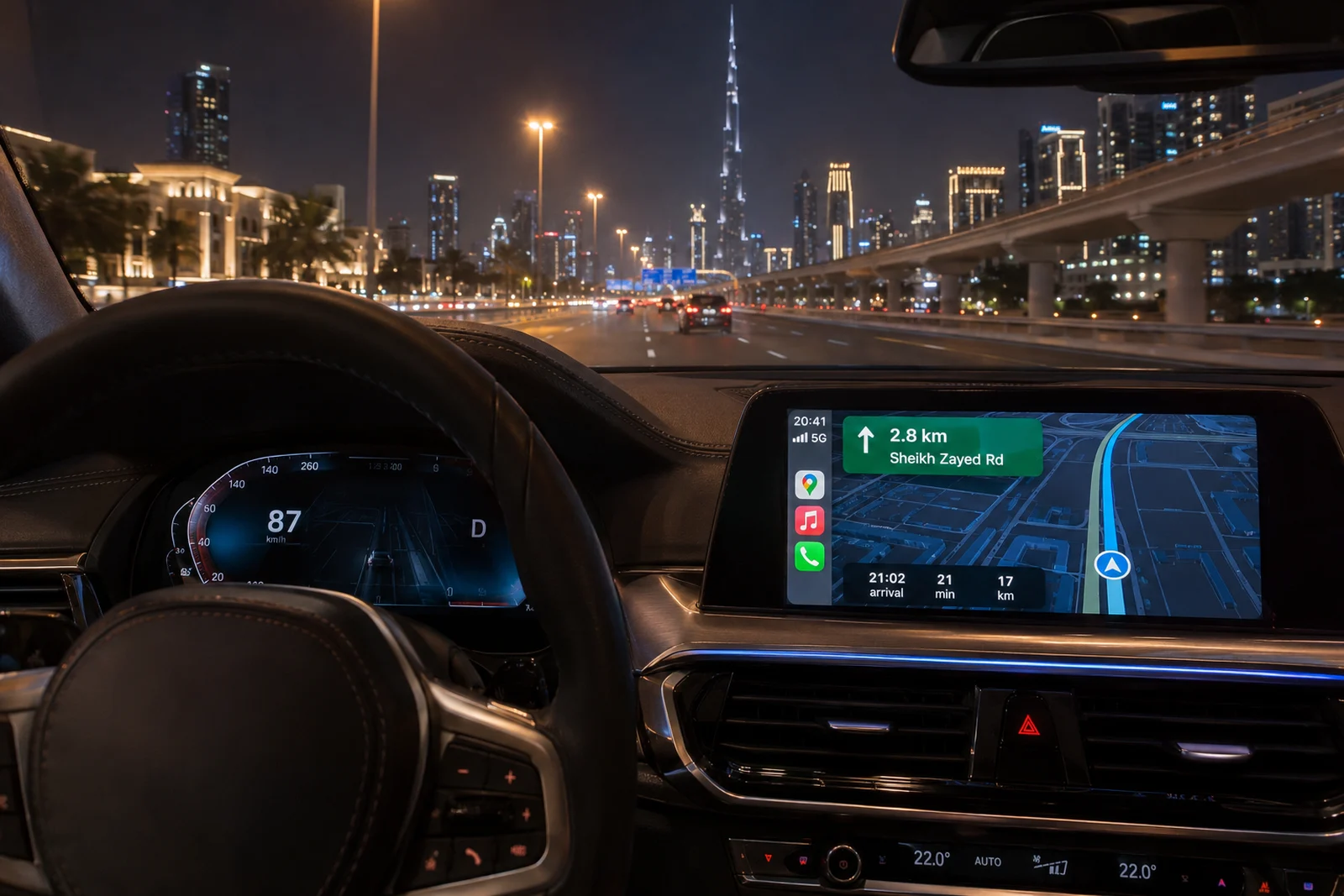
Book CarPlay
Your Phone Apps on Your BMW Screen
Send us your model, year and a photo of your iDrive screen. We tell you which route suits your car and give you a clear price before any work starts.
- Free pickup in Dubai
- Al Quoz workshop
- Monday to Saturday, 9am to 7pm